 RANREV INFOTECH
 Introduction of consolidate
The introduction of consolidation
Excel's Data Consolidation tool enables users to merge and summarize data from several worksheets or ranges into a single worksheet. Without the need for manual dataset copying or merging, it generates a summary picture of dispersed data using computations like Sum, Average, Count, Maximum, and Minimum.
- Businesses or analysts who work with departmental budgets, sales reports, or regional performance data dispersed across multiple sheets will find it very helpful.
- For instance, a financial team can use Excel's built-in Consolidate feature to combine budget data from several years, such as 2016, 2017, and 2018, into a single summary sheet.
Methods for Combining Data Across Several Worksheets
By Position: When the data that needs to be combined is displayed in separate sheets but has the same cell reference, such as when the data in sheet 1 begins at B2 and the data in sheet 2 likewise begins at B2 and have the same labels. Next, position-based data consolidation is applied.
By Category: Data consolidation by category is utilized when the data in sheets 1 and 2 have the same labels but different cell references.
Data Consolidation by Position
Here, I'll provide an example where I want to consolidate the data from three sheets (2016, 2017, and 2018) into a single sheet in the same spreadsheet.

The data in the three sheets labeled 2016, 2017, and 2018 is comparable to what was seen in 2016; the page labeled "consolidate" will have the combined results of the preceding sheets.
Step 1: Click on any cell in the Consolidate sheet to display the consolidated data.
Step 2: Select Data Tools > Consolidate under the Data Tab.

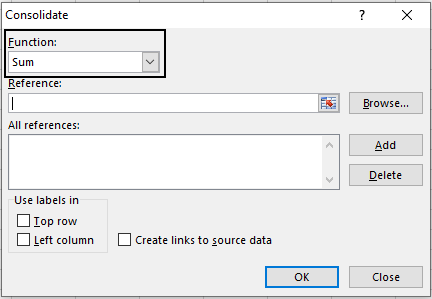
Step 3: As seen in the picture, the consolidation dialogue box will show up. You must choose the action you wish to do with the sheet data in the Function box. I'm choosing Sum here.
Step 4: Select the data (as shown in Fig. 2) and open the sheet you wish to consolidate by clicking on the Collapse dialogue (highlighted in the circle in the figure below). Click Add after the chosen data appears in the Reference option.
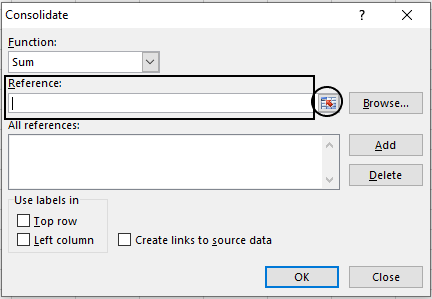
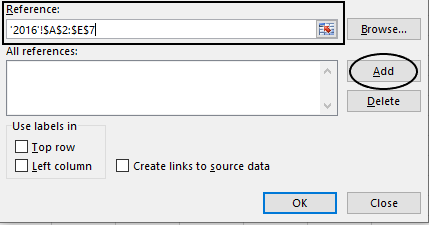
Fig 1
Fig 2
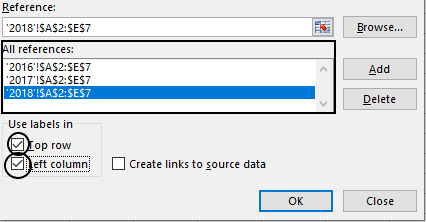
Step 5: The reference will appear in the All reference option (as seen in the image below) once you click Add. Additionally, include all of the sheet ranges you wish to combine as mentioned above. Click OK after checking the checkboxes in the top row and left column under Use labels in.
Data Consolidation by Category
Excel will construct a new row or column for the data in the final consolidated sheet if the cell reference of the data in each sheet is different, which is a problem with the prior method. Consolidation by category resolves this problem. You only need to make one modification to the above steps in order to use this strategy.